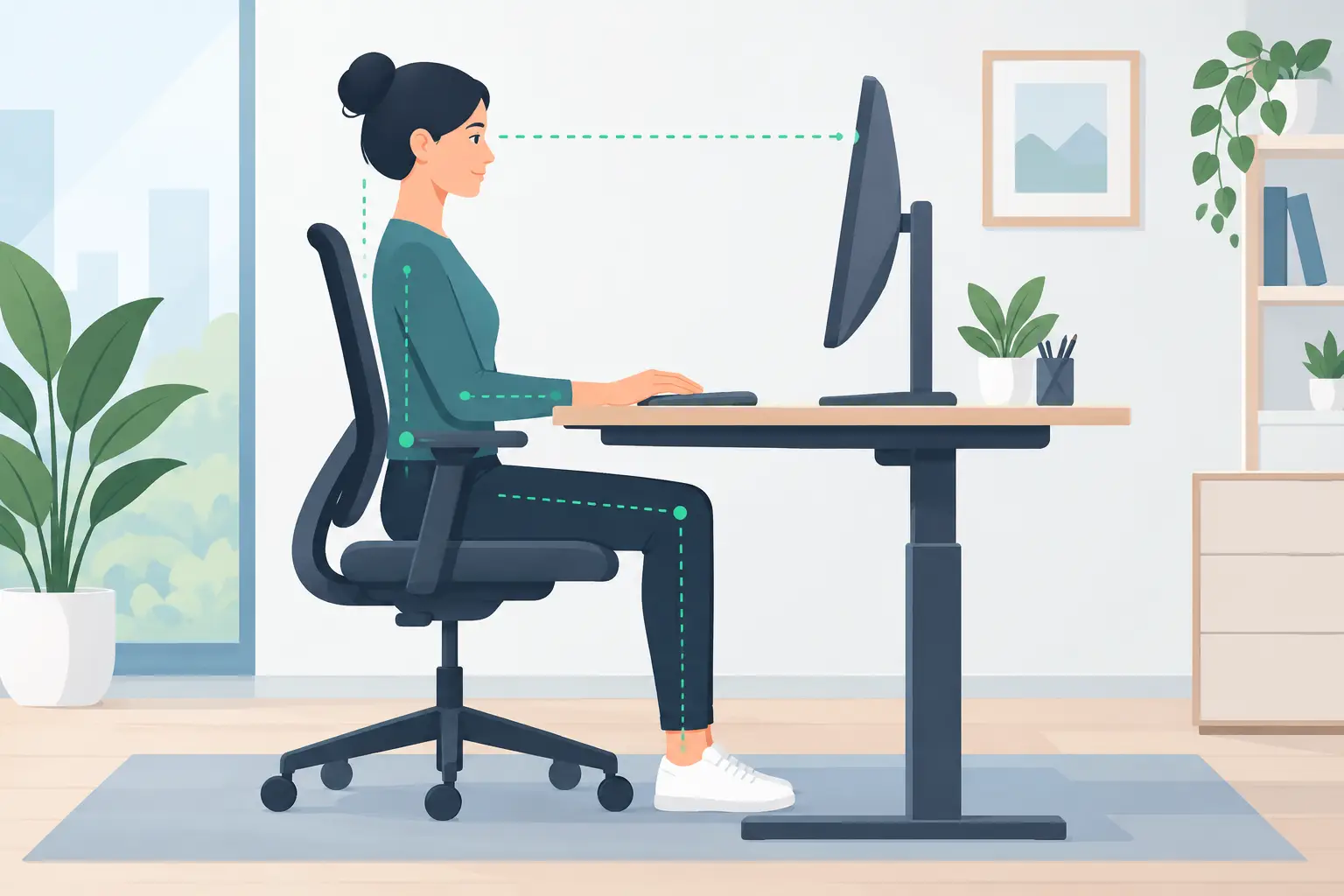
A workstation can look organized and still be hard on your body. A laptop positioned too low, a chair that does not support your lower back, or a mouse placed just beyond easy reach can add up to hours of neck tension, shoulder tightness, headaches, and back discomfort. This guide to ergonomic workstation setup focuses on practical changes that can make work more comfortable without turning your desk into a complicated project.
Ergonomics is not about holding one rigid “perfect” posture all day. It is about setting up your workspace so your body can work in a more neutral position, then changing positions often enough that no single area carries the strain for too long. The best setup is one that fits your height, work tasks, and any areas that already feel sore or restricted.
Start With the Chair and Your Feet
Your chair is the foundation of your workstation. Before adjusting your monitor or keyboard, sit all the way back in the chair so your back is supported rather than perched at the edge of the seat. Adjust the chair height until your feet rest flat on the floor and your knees are roughly level with, or slightly lower than, your hips.
If your feet do not reach the floor, use a stable footrest or a firm object that supports the full foot. Letting your feet dangle can create pressure behind the thighs and make it harder to sit comfortably through the day. If your chair is too high for the desk once your feet are supported, lowering the desk or using a keyboard tray may be a better solution than sacrificing foot support.
The chair back should support the natural curve of your lower back. Many office chairs have adjustable lumbar support, but a small cushion or rolled towel can also help fill the space between your low back and the chair. The goal is gentle support, not a pronounced curve that feels forced.
Armrests can be helpful when they allow your shoulders to relax. If armrests push your shoulders upward, keep you from sitting close enough to the desk, or hit the desk surface, adjust them lower or move them out of the way. Your forearms should have support when resting, but you should not need to lean heavily into the armrests to work.
Position Your Screen to Reduce Neck Strain
A monitor that is too low is one of the most common causes of forward-head posture at a desk. When you repeatedly look down, the muscles of the neck and upper back must work harder to support your head. That strain may show up as stiffness at the base of the neck, aching between the shoulder blades, or headaches that build later in the day.
Place your primary screen directly in front of you, about an arm’s length away. The top third of the screen should generally sit near eye level, though the right height can vary based on your vision, glasses, and screen size. You should be able to look at the center of the screen with a slight downward gaze, without bending your neck forward.
For a desktop monitor, a monitor stand or riser may provide the needed height. Laptop users often need a separate keyboard and mouse so they can raise the laptop screen without placing their hands too high. Trying to use a laptop keyboard for hours while the screen is at eye level usually creates a different problem: elevated shoulders and bent wrists.
If you use two monitors equally, position them side by side with the middle seam directly in front of you. If one screen is clearly your main screen, place that one in front of you and set the secondary monitor slightly to the side. Avoid routinely twisting your neck toward a screen that receives most of your attention.
Keep Your Keyboard and Mouse Within Easy Reach
Your keyboard and mouse should let your elbows stay near your sides, with your shoulders relaxed. Aim for elbows bent at approximately 90 degrees, although comfort matters more than matching an exact angle. Your forearms should be close to level with the floor or slope slightly downward toward the keyboard.
Place the keyboard close enough that you do not reach forward with your arms. When typing, keep your wrists as straight as possible rather than bent upward, downward, or sideways. A wrist rest can be comfortable during pauses, but it is not meant to support your wrists while you actively type.
Keep the mouse beside the keyboard at the same level. Reaching far to the side for a mouse puts repeated strain on the shoulder and upper back. If you spend much of the day switching between documents, a phone, and your computer, organize frequently used items in the closest area of your desk. The less reaching and twisting you do hundreds of times a day, the less cumulative strain your body experiences.
A headset can also be a worthwhile adjustment for anyone who takes frequent calls while typing. Holding a phone between the shoulder and ear may seem minor in the moment, but repeated side-bending can aggravate neck muscles and joints.
Use a Guide to Ergonomic Workstation Setup That Fits Your Tasks
There is no single desk arrangement that works for every job. A graphic designer may need a larger monitor and drawing tablet. A remote worker may spend much of the day in video meetings. A parent handling work at the kitchen table may have limited space and need simple, temporary adjustments. The key is to solve the strain created by the tasks you do most often.
For example, if you regularly read paper documents while typing, place them on a document holder beside or beneath your monitor instead of laying them flat on the desk. This reduces repeated downward head movement. If you use a standing desk, set the keyboard and monitor to the same relative positions you would use while seated. Standing does not automatically improve posture if you are still looking down or shrugging your shoulders to type.
Alternating between sitting and standing can feel good for some people, but it is not required. Standing for long periods can contribute to foot, knee, hip, or low back discomfort, especially on hard floors. If you use a standing desk, begin with short standing intervals and wear supportive footwear. Movement and variety matter more than trying to stand through an entire workday.
Break Up Stillness Before Pain Builds
Even an excellent workstation cannot make prolonged stillness comfortable. Muscles and joints are designed to move. Sitting in a well-adjusted chair for eight uninterrupted hours can still lead to stiffness, fatigue, and reduced mobility.
A practical goal is to change position regularly throughout the day. Stand when you take a call, walk to refill your water, or take a brief lap around the room between tasks. Every 30 to 60 minutes, take a moment to let your shoulders drop, gently turn your head from side to side, and move your upper back and hips. These breaks do not need to be long to be useful.
Pay attention to the first signs that your setup needs adjustment. Tight shoulders, tingling in the hands, a recurring headache, or low back pain that begins at the same time each workday are not issues to simply push through. They may point to a workstation problem, but they can also be related to muscle tension, restricted movement, an old injury, or another health concern.
When Ergonomic Changes Are Not Enough
Desk adjustments can reduce daily physical strain, but they do not replace individualized care when pain persists. If neck or back discomfort continues despite changes to your workstation, begins after an injury, limits your work or sleep, or includes numbness, weakness, or pain traveling into an arm or leg, it is wise to seek a professional evaluation.
At Summit Chiropractic & Massage in West Linn, care is centered on understanding the specific factors affecting your movement and comfort. Chiropractic care and massage-centered support can help address the muscle tension, joint restriction, and everyday strain that may be contributing to ongoing symptoms. A personalized plan can also help you make workstation changes that fit your body and routine rather than relying on a generic checklist.
Your desk should support the life you want to live after work, whether that means playing with your children, exercising, gardening, or simply ending the day with less pain. Start with one adjustment that makes an immediate difference, then give your body room to move throughout the day.